| Updated: 8 June, 2023 |
|

|
 |
Getting Started
1. Introduction2. Switching to GNU/Linux
3. Getting openSUSE
4. Installation
The Fundamentals
5. KDE Plasma Workspace6. Apps for Common Tasks
7. Security and Root
8. Terminal
9. Admin. Settings (YaST)
10. Installing Software
11. Software Repositories
Setup
12. MS Windows Interop13. Multimedia Codecs
14. Graphics Drivers
15. Wifi
Appendix
A: Help and DocsB: Games
C. Under the Hood
D. History and Background
E: Getting Involved
GNU Free Documentation License
12. MS Windows Interoperability
The PC world is dominated by Microsoft, and they're not exactly known for making interoperability easy. Despite this, it's possible to interoperate fairly seamlessly in most cases. This chapter addresses the most common issues.12.1 Office Documents
LibreOffice defaults to the Open Document Format (*.odt, *.ods, *.odp, etc.) which is an open standard. This format is partially supported by Microsoft Office >= 2007 Service Pack 2. Or you can suggest to your MS Windows and Mac OSX using contacts to install LibreOffice, as it's freely available for those platforms too.LibreOffice can also read and write the Microsoft Office formats (*.doc, *.xls,*.ppt, *.docx, *.xlsx, *.pptx etc.) quite well - as well as a wide range of other formats.
 |
If you come across Microsoft documents that LibreOffice doesn't render well, consider trying if you have better luck with the Calligra suite. |
12.2 Windows Network
For sharing resources on a local network with MS Windows machines the Samba service is used.12.2.1 Accessing Shares
No configuration is needed to access files shared by others. Simply:
Launch the Dolphin file manager => Click the location bar or press Ctrl+L for an editable location bar => Enter 'smb://[ip-address]'
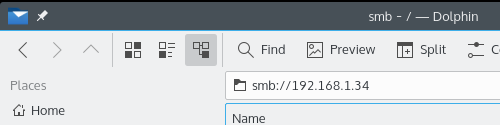
If you don't know the IP-address of the share you want to access, you can browse the local network by simply entering smb:/ in the Dolphin location bar. However, this will only work if you configure or (temporarily) disable the firewall first. More instructions coming soon...
12.2.2 Sharing Your Files
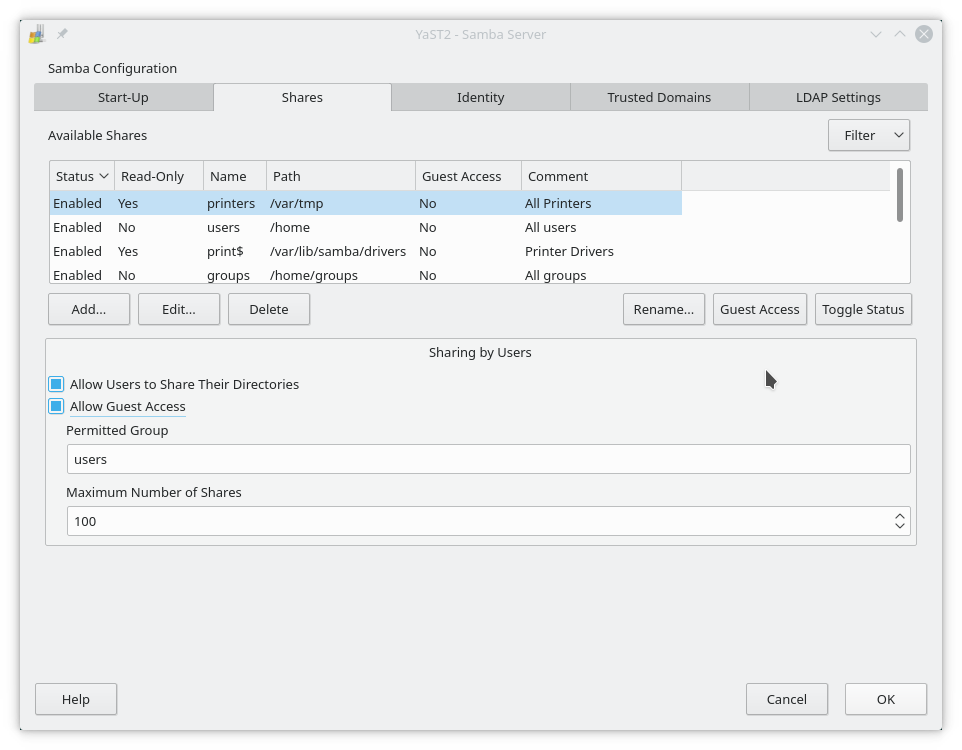
To share your files with MS Windows users, Mac OSX users or other GNU/Linux users on the local network you must configure the Samba Server (make sure the packages yast2-samba-server and samba are installed). You only need to perform the first three steps the first time you want share a folder.1)
Open the YaST Samba Server module.
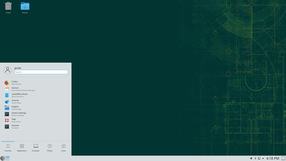
YaST => Network Services => Samba Server
2)
In the tab Start-Up select whether to autostart the Samba service during boot and whether to open the firewall ports required.
3)
Go to the Shares tab, check the options Allow Users to Share Their Directories and Allow Guest Access. In the Identity tab you can configure your workgroup and share name.
4)
Add shares by clicking the "Add" button and specifying the directories you want to share.
12.3 Running MS Windows Applications
High quality, native GNU/Linux applications exist for almost any purpose, but it's possible that you're dependent on a MS Windows-only application for some job. These are your options in such a case. |
You should only run non-native applications as a last resort. Apps work better in their native environment. |
12.3.1 Wine
Wine (Wine Is Not an Emulator) is an application that enables you to run many MS Windows applications, you can install wine with YaST or zypper.
Wine is a command line application, the syntax is:
wine /path/to/setup.exe
|
The package q4wine provides a graphical interface for some features of Wine. |
The Wine project keeps a database for sharing experiences of running applications, see:
http://appdb.winehq.org/appbrowse.php
12.3.2 CrossOver
CrossOver is not gratis. It's specialised in running a select few of the major MS Windows applications - mostly office related.https://www.codeweavers.com/products/cxlinux/
12.3.3 Dual Boot
As mentioned in the Installation chapter, it's relatively simple to run GNU/Linux and MS Windows on the same computer. If you only need a few applications that you rarely use, maybe it's worth it to reboot into MS Windows now and then, when you need to use these particular apps.12.3.4 Virtualisation
It's possible to run MS Windows on top of GNU/Linux inside a virtual machine, using software such as VirtualBox, KVM, Xen or VMware. This is somewhat advanced, and requires some computer power. |
 |
Send your comments via e-mail to admin [at] opensuse-guide.org